User Interface (UI)
GeoCat Bridge adds 4 main components to the ArcGIS Pro interface:
- A GeoCat Bridge ribbon tab with buttons to open the Bridge views, and tools and shortcuts to publish.
- A dockable Data Spaces pane to search catalogs, manage content and view publish progress or results.
- A dockable Style Preview pane to preview and save SLD styles of selected layers.
- A GeoCat Bridge backstage tab to configure the add-in (see Data space settings and Global options).
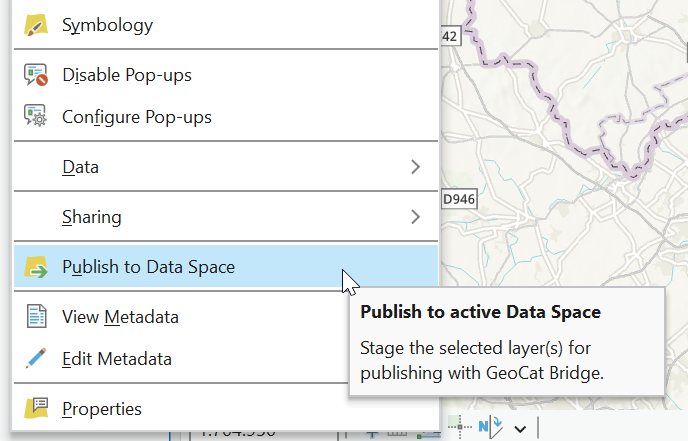
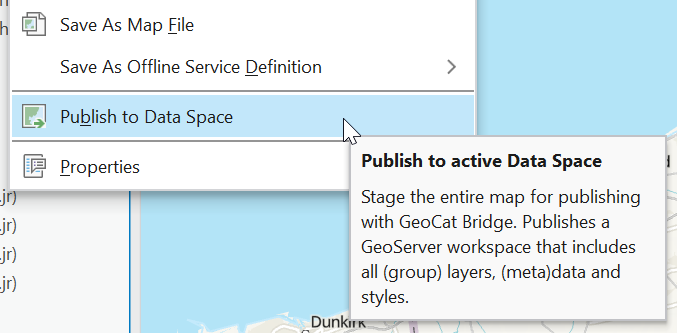
Furthermore, Bridge adds context menu options in several places. You can publish layer(s)(1) or the entire map(2) by clicking the right mouse button on a layer or map item in the Table of Contents (TOC) of ArcGIS Pro.
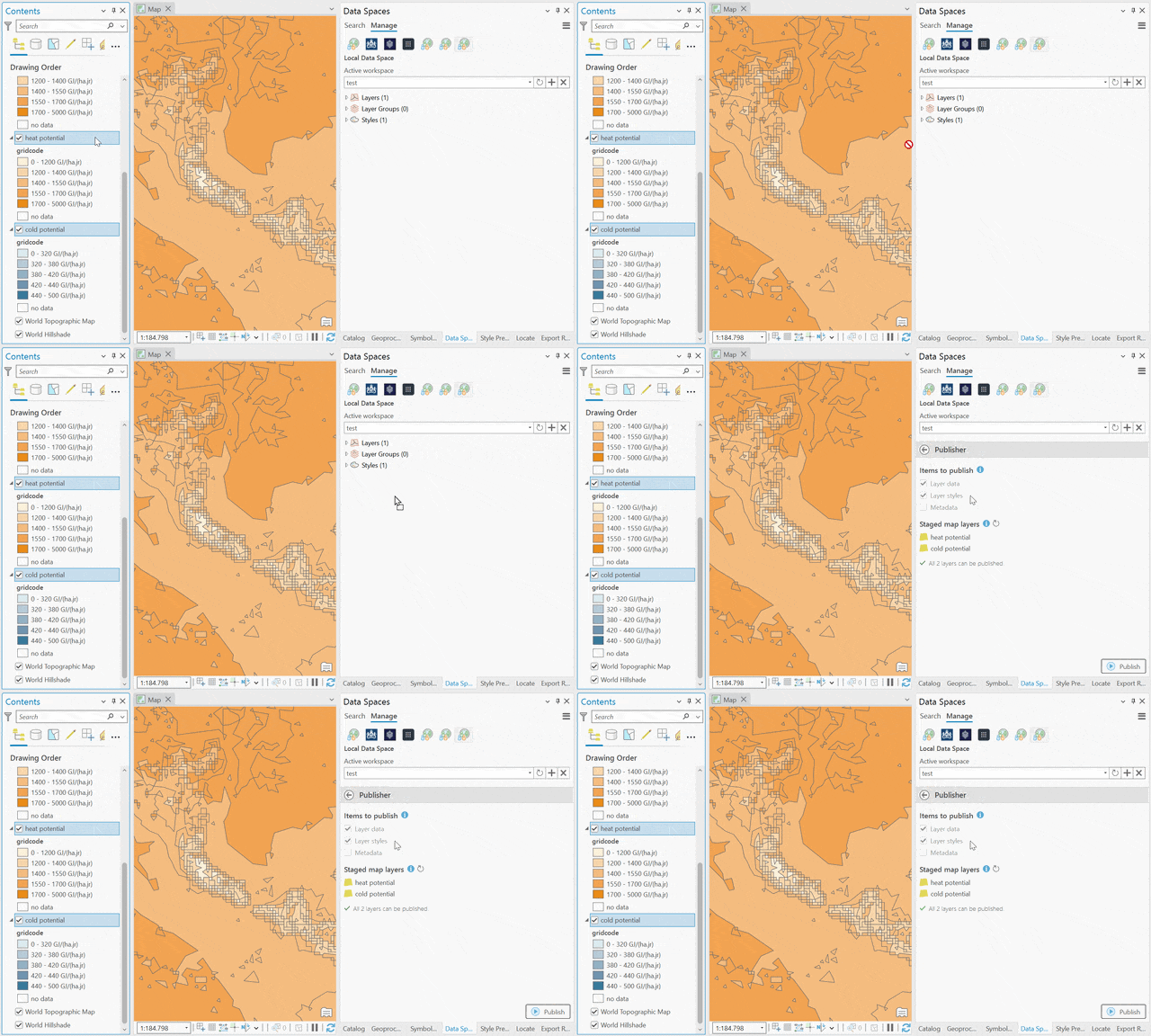
Alternatively, you can stage layers for publication by dragging them from the TOC(1) to an active GeoServer workspace in the Data Spaces pane (Manage tab).
Searching is free, while publishing to your own data spaces needs a license. See Editions & licensing.
Looking for step-by-step instructions? See the search and publishing guides.