Mapping services setup
To configure the GeoServer Enterprise component providing GIS and Mapping Services:
-
Navigate to your GeoCat Live GeoServer using the URL provided by email:
https://{{name}}.geocat.live/geoserver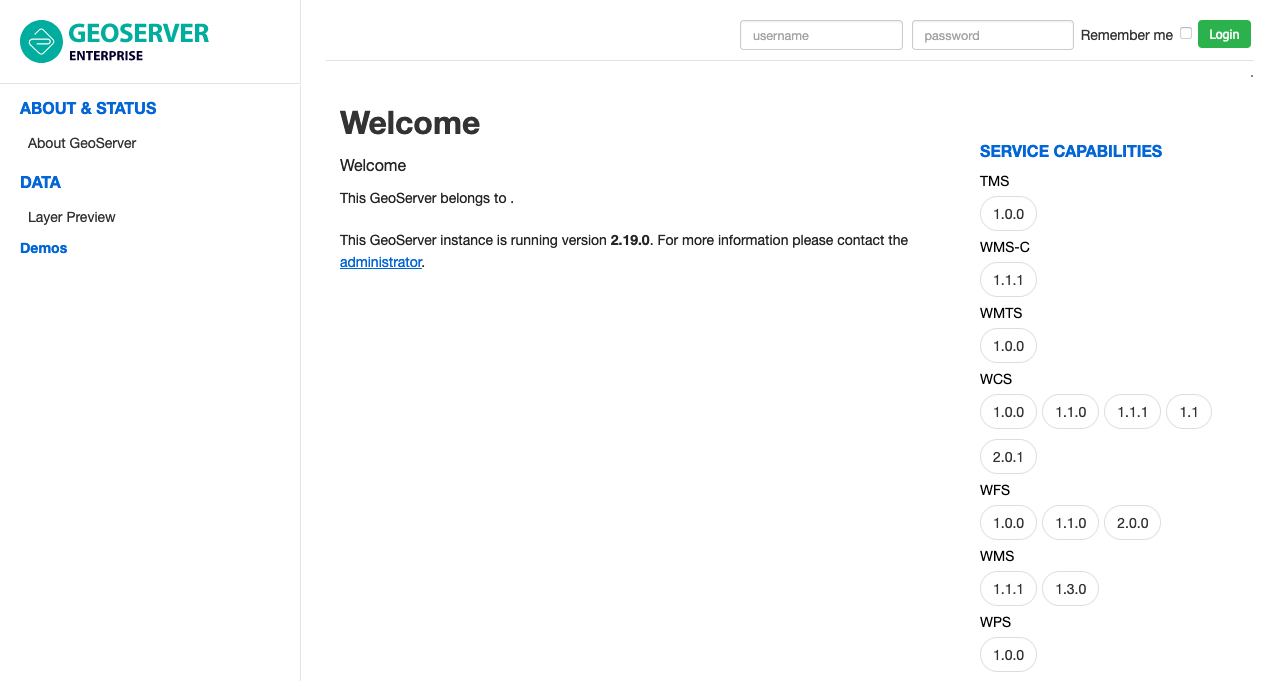 GeoServer Enterprise
 -
Use the credentials provided to login, the username and password fields are at the top of the page.
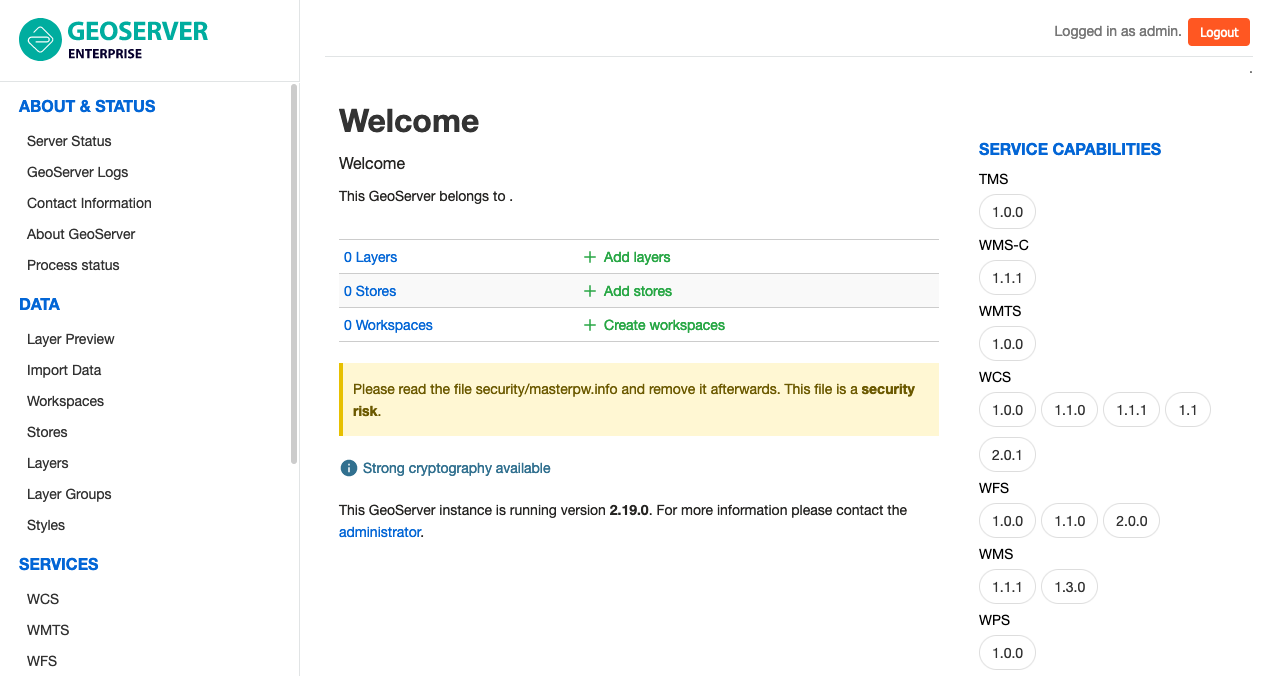
-
Navigate to
About & Status❯Contact Informationpage.-
Primary Content: Fill in contact information
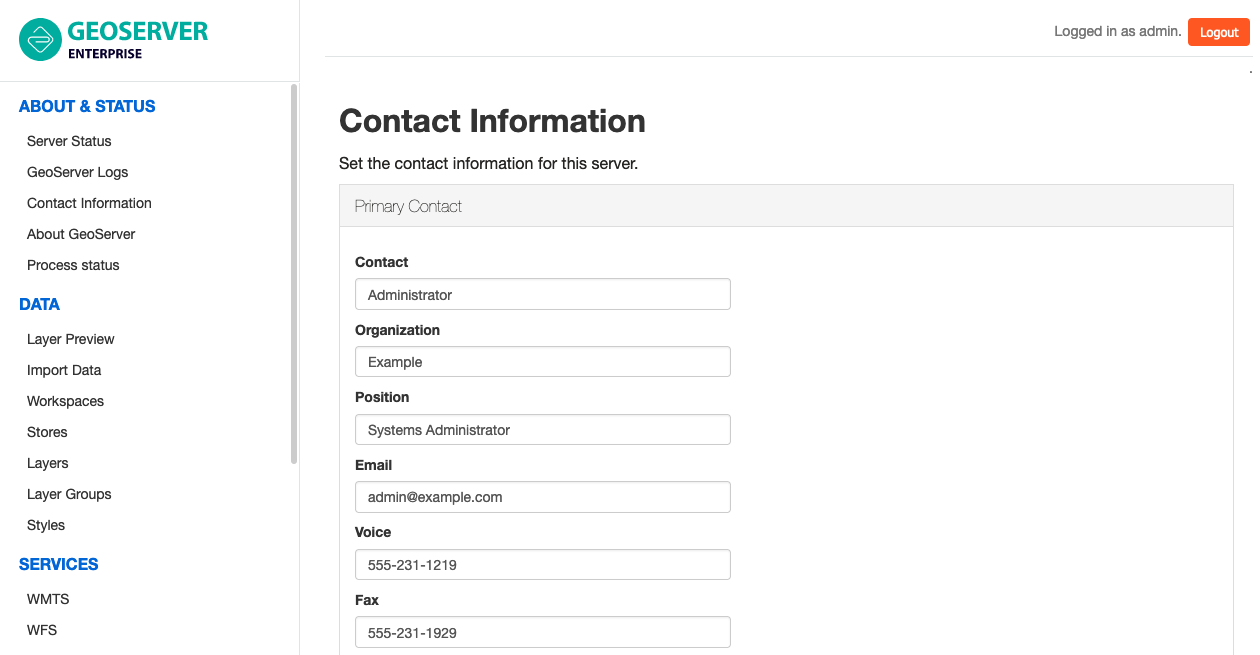 Primary contact information
Press Save to update contact information and return to the welcome page.
-
-
During setup a
masterpw.infowas generated for your reference.-
Navigate to
Toolspage at the bottom of the navigation menu.Click the Resource Browser link.
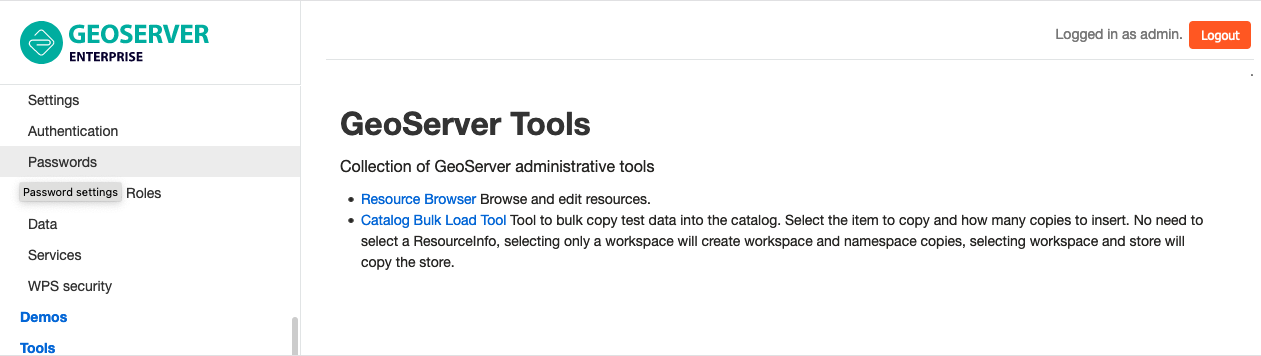 Tools page
 -
Use the Resource Browser to open the
securityfolder and select the filesecurity/masterpw.info.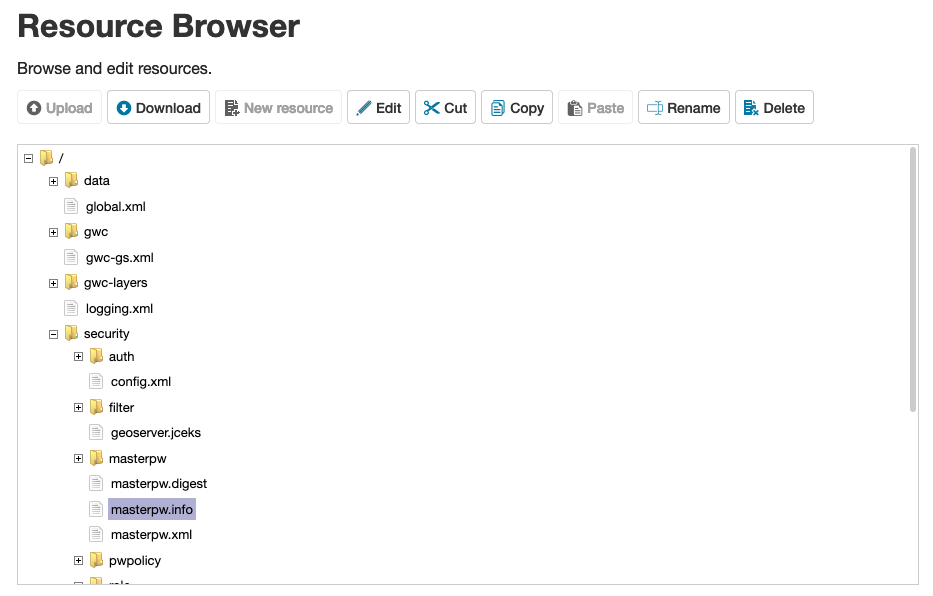 Resource Browser
 -
Press Edit button to view the contents of selected
masterpw.infofile.Make a note of the generated master password shown for your records. This master password can be recovered in the future if needed.
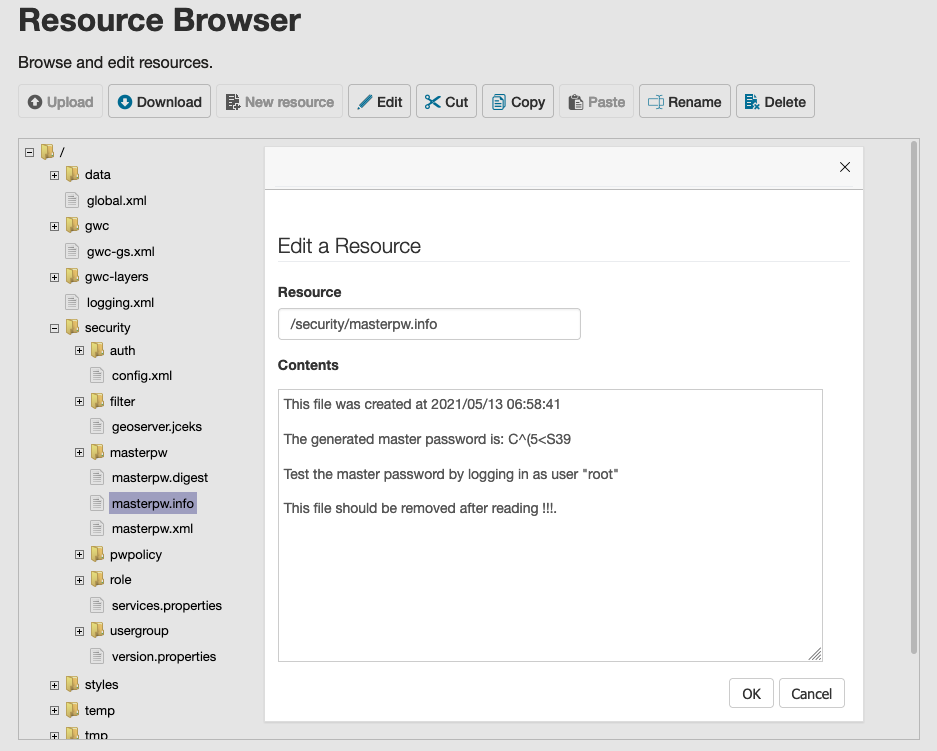 View masterpw.info file contents
 -
Press Delete to remove the selected
masterpw.infofile.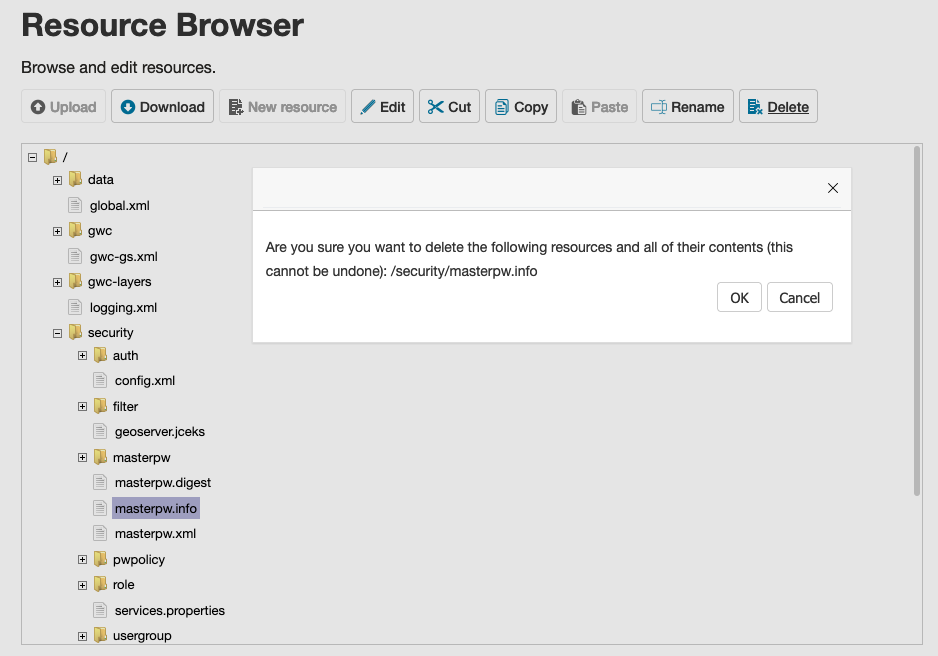 Delete masterpw.info file
Note
-
-
Recommended:
-
Enjoy GeoCat Live GIS services!
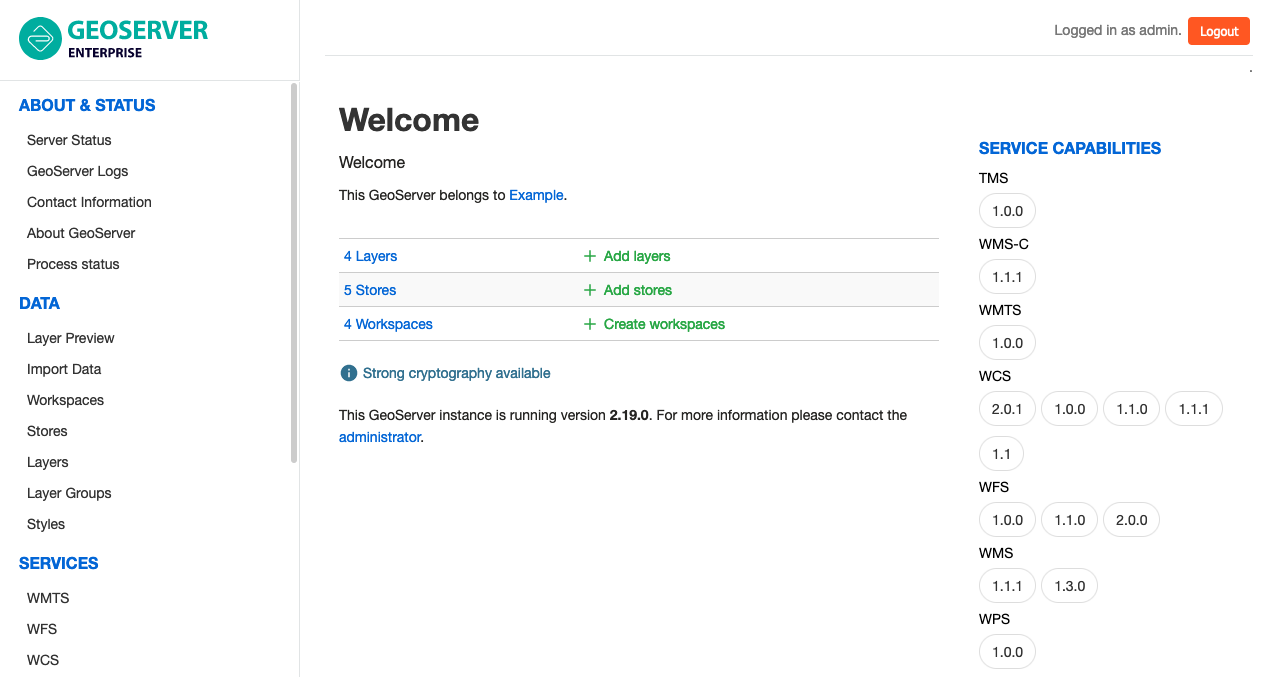 GeoCat Live GIS Services
Tip
Return to Welcome page at any time by clicking on the guilabel: GeoServer Enterprise logo at the top of the navigation menu.