Connect a catalog
Before you can search, Bridge needs to know which catalog to talk to. These connections are bundled in a data space. A "search only" data space contains just a catalog connection. It is free to use and needs no license. You can add and remove these data spaces straight from the Search tab, without opening the settings.
Add a search-only data space
No catalog of your own?
To try out searching, add the INSPIRE portal catalog hosted by GeoCat:
Set the connection type to GeoNetwork catalog. No authentication needed.
- Open the Data Spaces pane on the Search tab (click Search Content on the GeoCat Bridge ribbon).
- Click the button next to the data space icons. This button is only available on the Search tab.
-
Fill in the dialog:
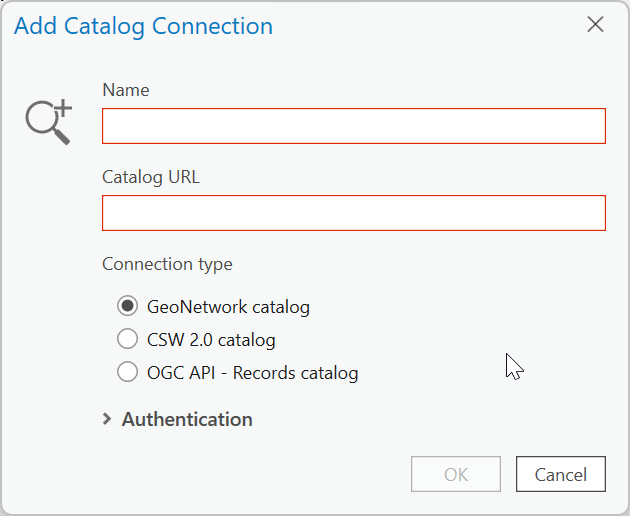
- Name: a name of your choice.
- Catalog URL: the address of the catalog.
- Connection type: GeoNetwork catalog, CSW catalog or OGC API - Records catalog.
- Authentication: leave this on No authentication for public catalogs. If the catalog requires a login, expand the section, choose Username and password and fill in your credentials.
-
Click OK.
That's it! The new data space is activated right away and ready to be searched. Continue with Finding and visualizing data.
Note
Bridge does not test the connection when you click OK. If the catalog cannot be reached, is not of the type you selected, or rejects your credentials, the data space is still added, but the Search tab shows Search unavailable: "Could not connect to the catalog". To fix this, open the data space in the settings and correct the URL, connection type or credentials, or remove the data space and add it again.
Note
For GeoNetwork, use the root URL (e.g. https://mydomain.com/geonetwork).
For OGC API - Records, you may also use the URL of a single collection.
Remove a search-only data space
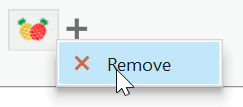
On the Search tab, right-click the icon of the data space and choose Remove. Confirm with Yes in the dialog that appears. The data space is then removed from your configuration right away.
Note
Remove is only available for search-only data spaces that you added yourself. You cannot remove data spaces that have a map service, that were configured by an administrator, or the GeoCat Live Demo data space.
If the removed data space was the active one, Bridge activates the data space next to it. If none are left, you are asked to configure one in the settings.
Need more than search?
Search-only data spaces cannot be used for publishing. To publish, see Configure services.
Technical details
See Connections for supported catalog types, URLs and authentication.