Install & activate
Download
A copy of the GeoCat Bridge for ArcGIS® Pro add-in can be obtained from the GeoCat software repository.
The add-in is fully functional, but will run in Community Edition mode until you activate it with a valid license.
If you experience any problems downloading or installing the software, please contact us.
Installation
Assuming that you already have installed ArcGIS Pro on your system, the only thing you need to do is double-click the downloaded .esriAddinX file.
This will unpack the add-in, copy the binary files to the right location(s) on disk and register it with ArcGIS Pro.
Important
Always make sure that there are no running instances of ArcGIS Pro during the installation process.
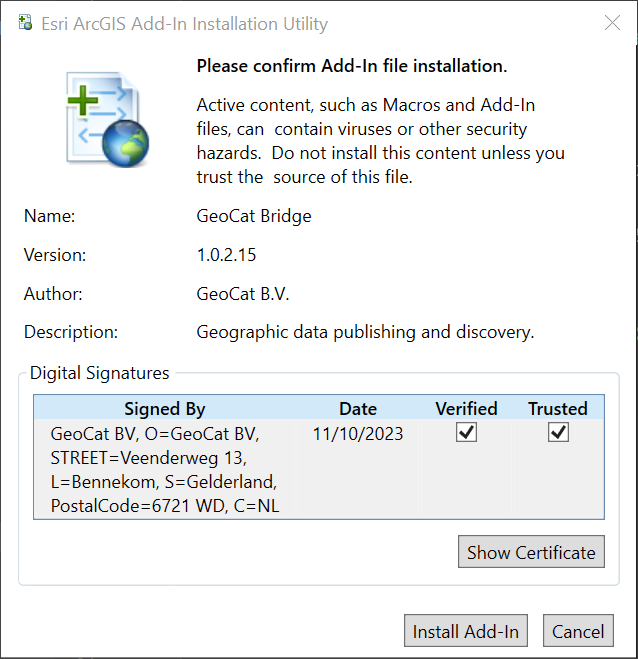
When you double-click the .esriAddinX file, you should see a dialog similar to this:
Digital Signature
GeoCat BV will always ship Bridge with a digital certificate.
Please ensure that the add-in file has been signed with a valid certificate before you hit the Install Add-In button,
and make sure that the details look similar to the screenshot above.
Details about deleting (uninstalling) or disabling an add-in can be found in the official ArcGIS Pro documentation. If you wish to temporarily hide the GeoCat Bridge toolbar without uninstalling it, you can customize the ribbon.
Installing for many users?
Administrators can deploy Bridge from a shared add-in folder. See Administrative install.
Once the add-in has been installed successfully, you should see a new GeoCat Bridge tab on the ribbon at the top of ArcGIS Pro:

The first time you start Bridge without a license, you will be told that it is running as the Community Edition.
Activate Bridge
Only searching?
You do not need a license to search catalogs. Activation is only required to publish to your own data spaces.
Once you have obtained a license key from the customer portal, click the Activate Now... button in the About tab of the Bridge backstage settings:
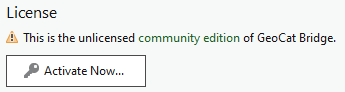
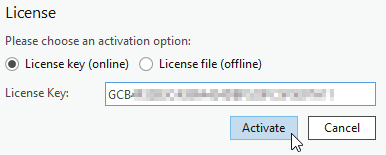
Choose the License Key (online) option and paste the GCBxxxx key into the text box. Then hit the Activate button.
This is the recommended and easiest method. A key can be used on multiple machines (site license), provided that you have purchased enough seats, but your machine needs to be able to connect to the GeoCat license server.
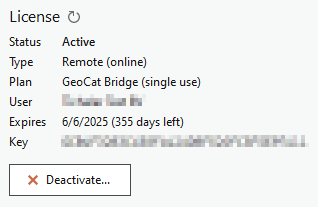
If the activation was successful, you will see your license details in the About tab:
Working in an offline environment?
If your machine cannot obtain a license using the License Key (online) option due to IT restrictions, you may try the License File activation option. That page also explains how to deactivate a license.
Update Bridge
When a new version of GeoCat Bridge is released, you can simply download the new version from the GeoCat software repository and install it over the existing version.
Since version 2.0, Bridge can automatically check for new versions in the About tab.
Make sure that ArcGIS Pro is not running during the installation process. Once the new version is installed, you can start ArcGIS Pro again, and GeoCat Bridge should automatically update your existing configuration, if required.
Tip
GeoCat takes great care that your configuration is properly migrated to a new model version.
However, you may wish to backup your configuration file(s) before you update GeoCat Bridge.
Administrators: see Administrative updates.
Next steps
- To find data, connect a catalog and start searching.
- To publish your maps, configure a data space or try the demo data space.