License options
Bridge runs as the Community Edition until you activate it with a license. There are two ways to activate: with a license key (online) or with a license file (offline).
License key
The license key is the recommended and easiest way to activate Bridge. A key can be used on multiple machines (site license), provided that you have purchased enough seats, but the machine needs to be able to connect to the GeoCat license server. The steps are described in Install & activate.
License file
When you are working in an offline environment (i.e. with restricted Internet access or none at all), you can activate Bridge using a license file. Note that this licensing method is intended for single use licenses (node-locked).
To activate, click the Activate Now... button in the About tab, choose the License File (offline) option and copy the activation code that is displayed:
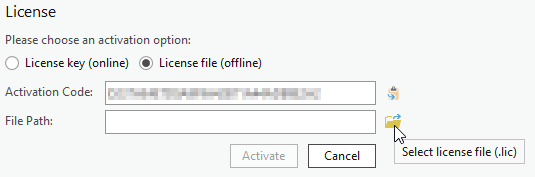
Submit a ticket on the GeoCat customer portal (login required) and paste the activation code, so GeoCat can generate a license file (.lic) for you.
Then, go back to ArcGIS Pro and point the activation form to the location where you saved the license file. Then hit the Activate button.
If the license file is valid, you should now see your license details in the About tab.
Info
If you are still migrating from Bridge for ArcMap, your old license file will no longer work, even if your machine remains the same. Please request a new license file as described above.
For administrative installations, the license key/file is copied to the shared add-in folder together with the configuration.
Deactivation
To deactivate a license, simply click the Deactivate button under the License section of the About tab. You will be warned before the deactivation is performed.
This will release the license (i.e. clear all license data) from the machine, so that you may activate it on another machine, or re-activate it on the same machine using a different license key or file.