Configure services
Searching only needs a catalog connection, which you can add in seconds. To publish, you need a data space with a Map Service (GeoServer) and, optionally, a Catalog Service (GeoNetwork). Publishing requires a license, unless you use the demo data space that comes with the Community Edition.
Add a data space
-
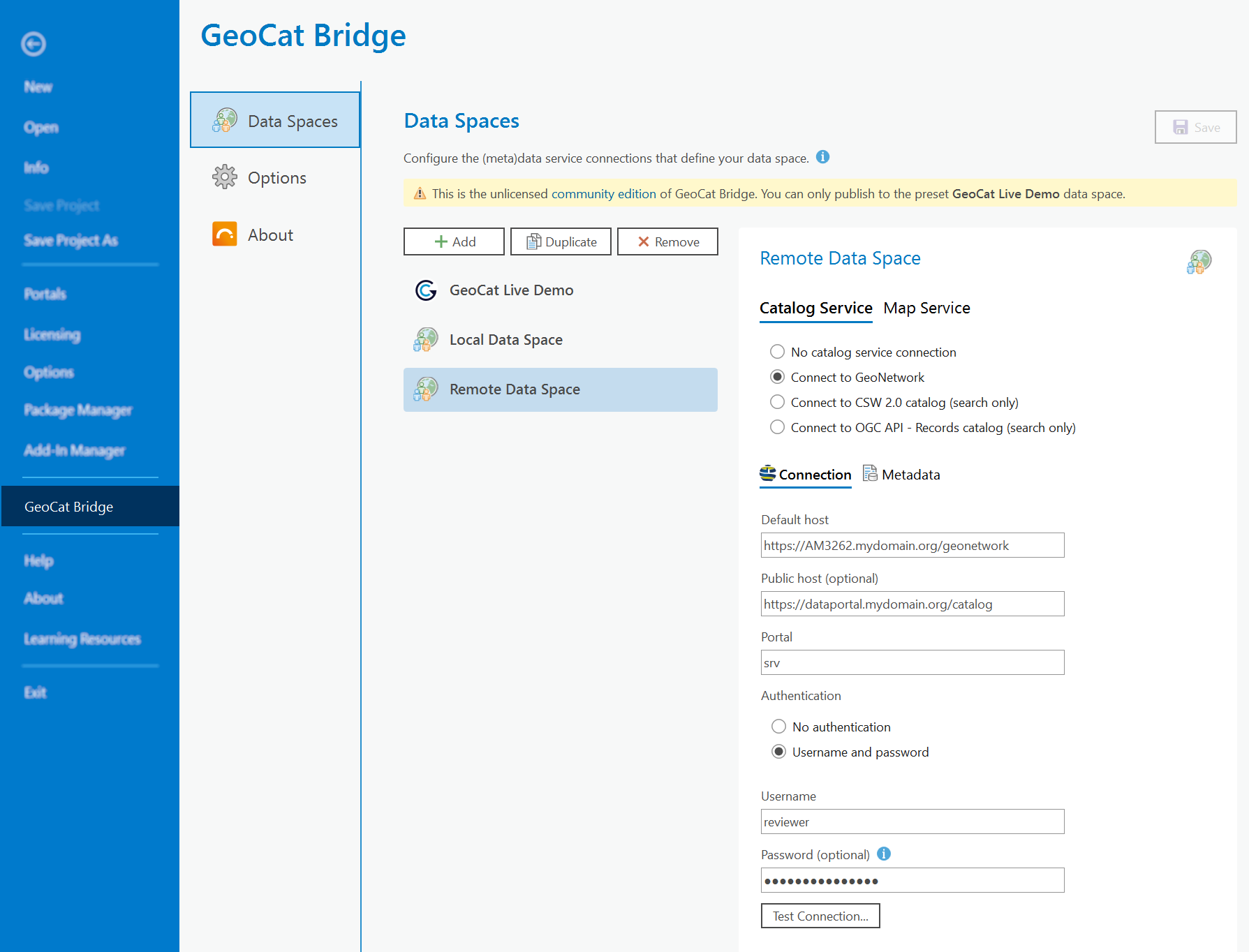
Click the Settings button on the GeoCat Bridge ribbon. The Data Spaces tab will be displayed.
-
Click the Add button to display an empty form.
- Optionally fill in the Catalog Service connection (GeoNetwork URL, username, password), so your metadata is published too. Then fill in the Map Service connection (GeoServer URL, username, password).
- Click Test Connection... to verify that Bridge can reach the server.
- Click the
 Save button.
Tip
You can rename a data space, or find out why some data spaces cannot be edited (they may be pre-configured by an administrator), in Data space management.
Set up the entire data space
A data space has more settings than the connections above. To learn what a data space is and how its services work together, see Data spaces. For every setting (Catalog Service, Map Service, connection and storage options), see Data space settings.
When your data space is ready, publish a map or publish layers.
Technical details
All connection fields are described in Data space settings.
For supported servers and authentication, see Connections.