Manage a workspace
A GeoServer workspace is a container for items that belong together: layers, layer groups and styles. On the Manage tab of the Data Spaces pane you can see what is in the active workspace and tidy it up. Publishing new content is described in Publish layers.
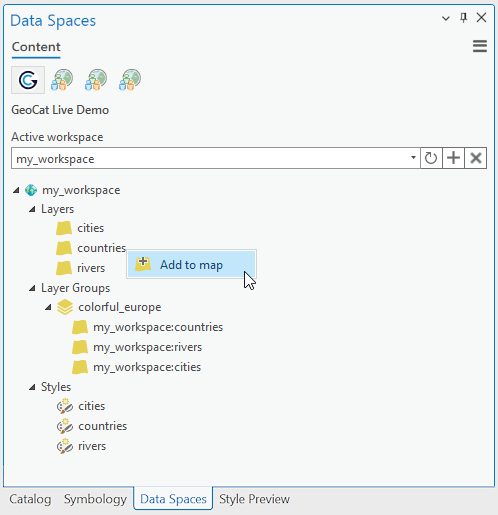
Select the workspace you want to work in with the Active workspace dropdown. Its contents are listed below: layers, layer groups and styles, all in ascending order. Child layers of a layer group are shown in their group order.
Licensing
Changing a workspace needs a license. With the demo data space you can add workspaces, but you cannot remove anything. Browsing and adding layers to your map is always free. See Editions & licensing.
Add workspace layers to your map
Right-click a layer or layer group in the workspace tree and choose Add To Map. This adds the GeoServer WMS layer to your active map. The menu item is disabled when no map is active (for example, when a Catalog or Layout view is active instead).
Create or delete a workspace
Next to the Active workspace dropdown you find the Refresh, Add Workspace (name, optional namespace URI and isolation flag) and Delete Workspace buttons. Deleting a workspace removes everything in it and cannot be undone; Bridge asks for confirmation first. See the Data Spaces pane reference for all buttons.
Create a layer group
A layer group bundles published layers, so they can be used as one map layer.
-
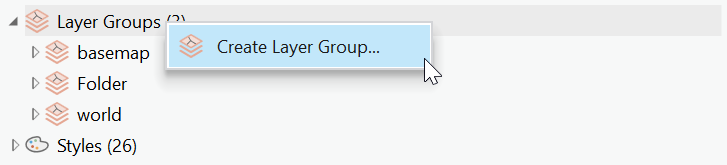
Right-click Layer Groups in the workspace tree and choose Create Layer Group....
-
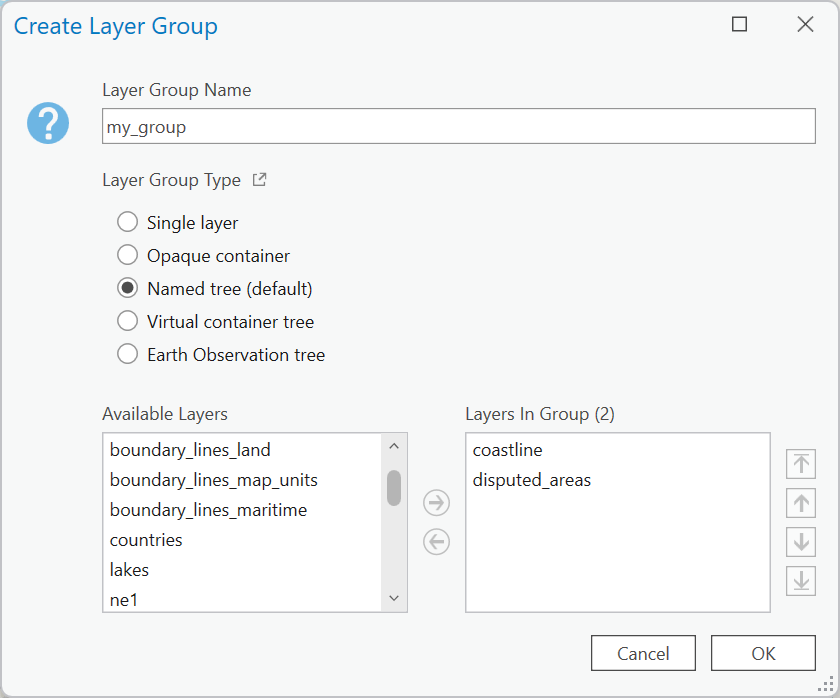
Enter a name, choose a layer group type and move the layers you want from Available Layers to Layers In Group. Use the arrow buttons on the right to set their order.
-
Click OK.
Tip
The default type (Named tree) fits most cases. Not sure what the types mean? See the GeoServer documentation on layer group modes.
Add a layer to a layer group
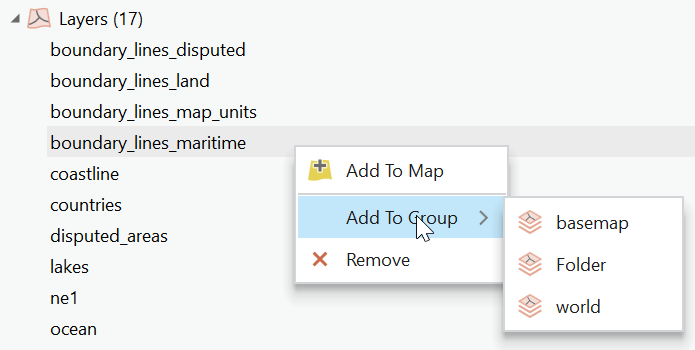
Right-click a layer in the workspace tree, choose Add To Group and pick the layer group.
Reorder layers in a group
Right-click a layer inside a layer group and choose Move To Top, Move Up, Move Down or Move To Bottom.
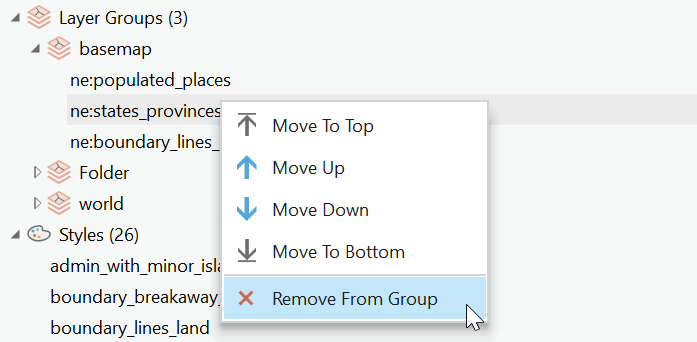
Remove layers, styles and groups
Removing items needs a license and a data space other than the demo data space. Each removal asks for confirmation first.
-
Remove a layer: right-click it in the workspace tree and choose Remove. This removes the layer from GeoServer, together with its default style and its data store when no other layer or style still uses them. If that cleanup is not possible, it is skipped silently and the style or store stays in the workspace.
A layer that is part of a layer group cannot be removed: Remove is disabled for it. Remove it from the group first. - Remove from a group: right-click the layer inside the group and choose Remove From Group. The layer itself stays in the workspace. If it is the last layer in the group, the whole group is removed too, and Bridge tells you so before you confirm. - Remove a style: right-click it and choose Remove. This also deletes the style file. If a layer still uses the style, GeoServer refuses and Bridge tells you so. - Remove a layer group: right-click it and choose Remove. The layers in the group are kept.
Warning
Removing a layer, layer group or style from GeoServer cannot be undone.
Technical details
Layer data is stored in GeoServer datastores that Bridge manages for you. See Data storage. The tree and its menus are listed in the Data Spaces pane reference.