Preview and save styles
Before you publish, you can check how GeoCat Bridge translates the symbology of your ArcGIS Pro layers to the style format that GeoServer uses (SLD). Previewing is part of the free Community Edition.
Preview a style
- Click the Style Preview button in the Views group of the GeoCat Bridge ribbon to open the Style Preview pane.
- Click a layer in the Table of Contents of your active map.
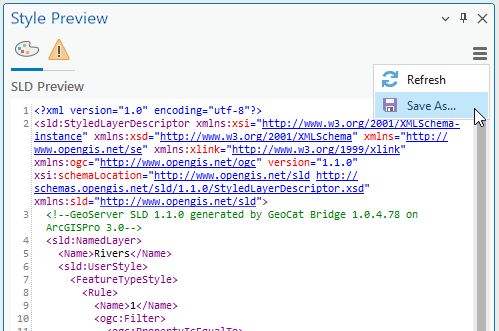
The pane shows the generated SLD for that layer.
Note
Marker images (PNG or SVG) are replaced by dummy file names (e.g. symbol.svg) in the preview. Save the style to disk to see the real names.
Check the warnings
- If the layer is not supported, you will not see any SLD output.
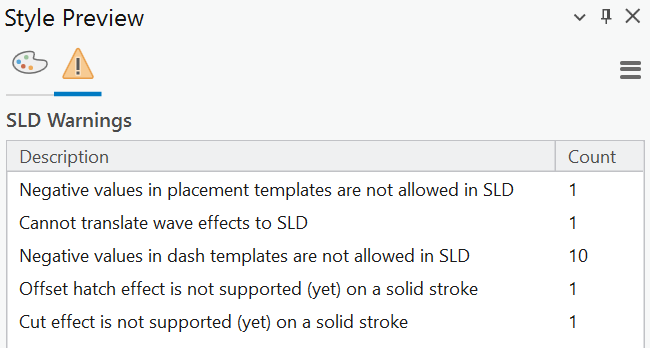
- If the layer is supported but something could not be translated properly, click the
 icon to list the issues on the Warnings tab.
Tip
If you see warnings, try simplifying the style in ArcGIS Pro, e.g. by flattening geometric effects. Not all symbols and effects can be recreated in GeoServer.
Save a style to disk
Click Save As... in the top-right corner of the pane to save the SLD, together with its image files (PNG or SVG), to disk. This requires a license.
Publish only the style
Updated the symbology in ArcGIS Pro? You can update the styles in GeoServer without uploading the data again. Use the All Styles or Selected Styles buttons, as described in Publish layers.
Technical details
See Symbology conversion for supported symbolizers, limitations and troubleshooting. The pane is described in the Style Preview pane reference.