Installation on Linux
To install GeoCat Map in Linux, follow these steps.
Java
GeoCat Map requires a Java 17 environment.
OpenJDK is now the lead project for the Java ecosystem. As an open-source company GeoCat is pleased to see OpenJDK supported by a number of different distributions.
-
We recommend using OpenJDK 17 provided by your operating system:
-
Ubuntu
-
RedHat:
-
To manually install Java, see Java
-
-
Verify that java is available:
Apache Tomcat
Apache Tomcat is the leading open source application server.
GeoServer requires Apache Tomcat 11.0.x.
-
Installation options:
- Tomcat on Ubuntu - Ubuntu package install,
tomcat11on Ubuntu 26.04 LTS and later - Tomcat - manual install of the official Tomcat 11 distribution, required on earlier Ubuntu releases (such as 24.04 LTS) and other distributions
- Tomcat on Ubuntu - Ubuntu package install,
-
Verify that tomcat is available as a service:
-
Manual install / systemd
-
Ubuntu package
-
-
The application server is available on port 8080:
Data Directory
GeoServer places all its required configuration files in a GEOSERVER_DATA_DIR folder.
This location my be explicitly provided, to do so, follow these steps:
-
Create a folder to hold your GeoServer configuration:
-
We have three options for creating an initial GeoServer data directory:
-
Alternative 1 - Use the default data directory with recommended service configuration settings.
Login to nexus.geocat.net and browse to the enterprise folder:
Navigate to the latest
geoserverrelease and select thegeoserver-data-defaultzip archive.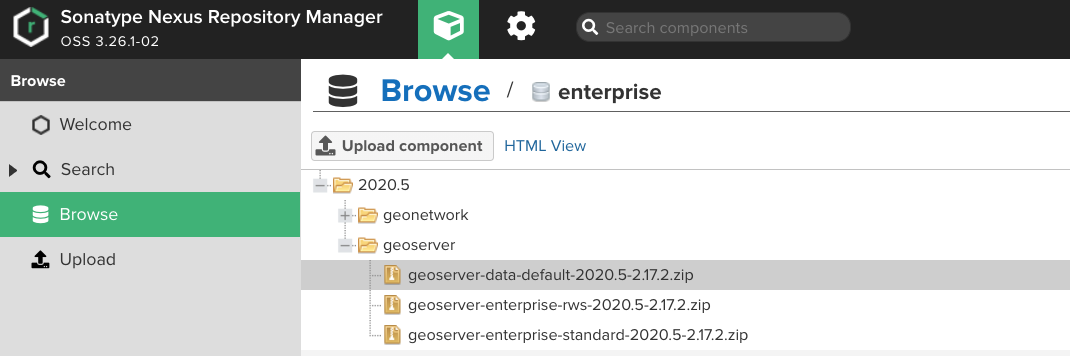 Locate latest geoserver-data-default zip archive
Copy the download URL from the asset summary Path link.
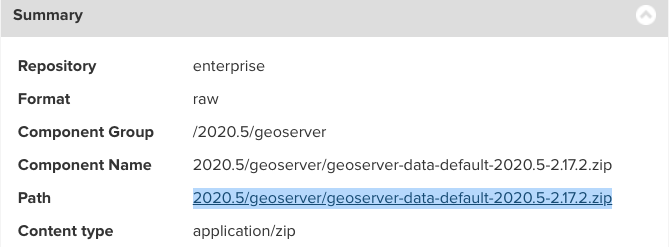 Latest geoserver-data-default zip URL
Use wget to download the URL:
mkdir /tmp/geoserver-enterprise
cd /tmp/geoserver-enterprise
wget --http-user='USERNAME' --http-password='PASSWORD' https://nexus.geocat.net/repository/enterprise/2026.0/geoserver/geoserver-data-default-2026.0-3.0.1.zip
geoserver-data-default-2026.0-3.0. 100%[================================================================>] 10.41K --.-KB/s in 0.002s 2026-09-03 09:11:00 (5.03 MB/s) - 'geoserver-data-default-2026.0-3.0.1.zip.1' saved [10663/10663]Unzip this archive:
extracting: data.zip
 inflating: windows/geoserver.xml
 inflating: linux/geoserver.xml
 inflating: README.txt
Unzip the
data.zip: -
Alternative 2 - Use the standard data directory with recommended service configuration settings, and a selection of example layers:
extracting: data.zip
 inflating: windows/geoserver.xml
 inflating: linux/geoserver.xml
 inflating: README.txt
Unzip the
data.zip: -
Alternative 3 - Use an empty folder, GeoServer will generate configuration files to this folder the first time it runs:
This approach is often used in automated workflow where GeoServer is configured via REST API scripts.
-
-
Create an empty
tilecachefolder:The GeoWebCache tile server will use this empty folder to manage generated tiles.
-
Ensure the tomcat user has permission to access the above directories:
-
Update the Tomcat configuration with this data directory location:
-
Open the Tomcat folder (
/opt/tomcat/latestfor a manual install, or/etc/tomcat11for the Ubuntu package) and navigate to theconf/Catalina/localhostsubfolder. -
In the
localhostfolder, create a geoserver.xml file, with the following content:<Context> <Parameter name="GEOSERVER_DATA_DIR" value="/var/opt/geoserver/data" override="false"/> <Parameter name="GEOSERVER_REQUIRE_FILE" value="/var/opt/geoserver/data/global.xml" override="false"/> <Parameter name="GEOWEBCACHE_CACHE_DIR" value="/var/opt/geoserver/tilecache" override="false"/> </Context>
Note the
conf/Catalina/localhost/folder is created when you first run Tomcat. -
-
The default on recent Ubuntu is to provide and operating system systemd sandbox for services.
Provide the Tomcat service read/write permissions to the GeoServer Data Directory and the GeoWebCache tile cache directory:
-
Edit the Tomcat systemd configuration. For a manual install this is likely
/etc/systemd/system/tomcat.service; for the Ubuntu package it is/etc/systemd/system/multi-user.target.wants/tomcat11.service. -
In the
[Service]section, add these lines: -
If you will be writing anywhere else on the file system, also add those directories here.
-
Ask systemd to read these changes, and restart Tomcat
-
GeoCat Map
To install GeoCat Map on your existing Tomcat instance, follow these steps:
-
Login to nexus.geocat.net and browse to the enterprise folder:
Navigate to the latest
geoserverrelease and select thegeocat-map-standardzip archive.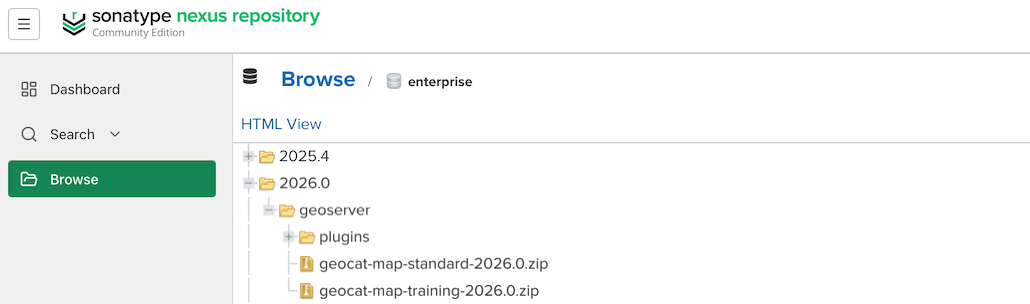
-
Unzip this file containing:
linux- sample configuration filesgeoserver.war- geoserver web applicationGPLandLICENSE.txtopen source license information
-
Copy the
geoserver.warweb archive to the to[Tomcat_folder]/webappsfolder.The
[Tomcat_folder]will be/opt/tomcat/latestfor a manual install, or/var/lib/tomcat11/for the Ubuntu package.Tomcat will deploy
geoserver.warweb application, creating the folderwebapps/geoserverwhen you first run Tomcat. -
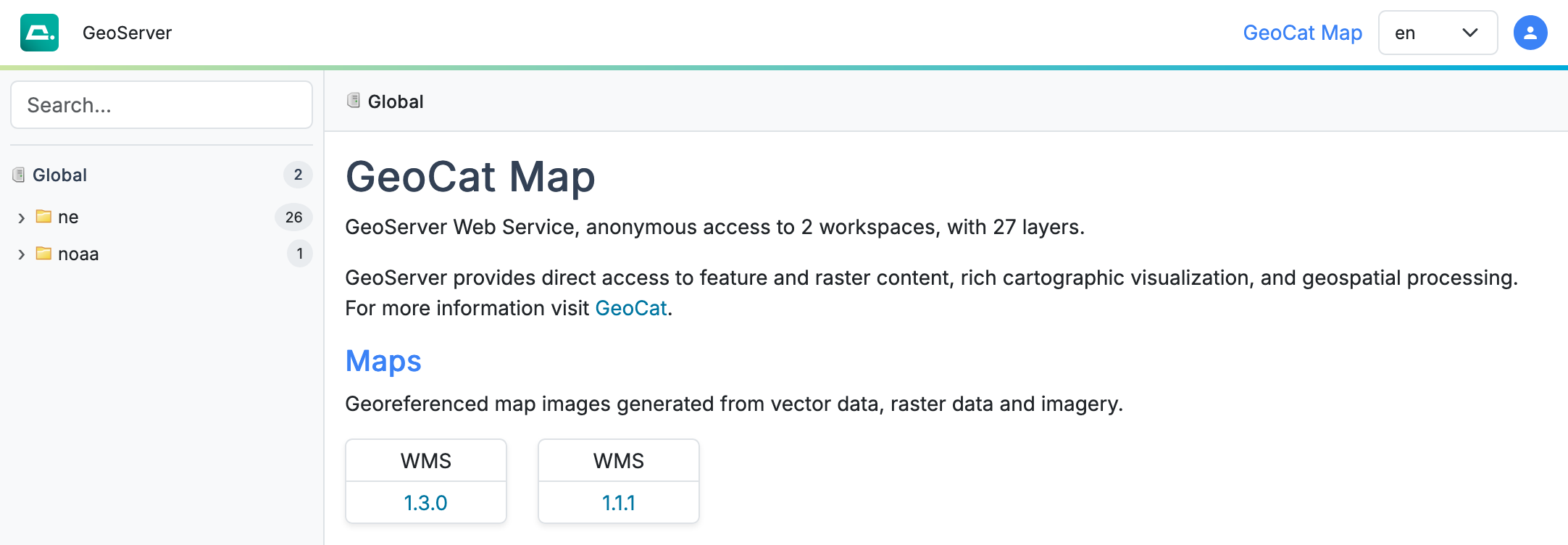
In your web browser, navigate to http://localhost:8080/geoserver to verify that GeoCat Map is correctly working.